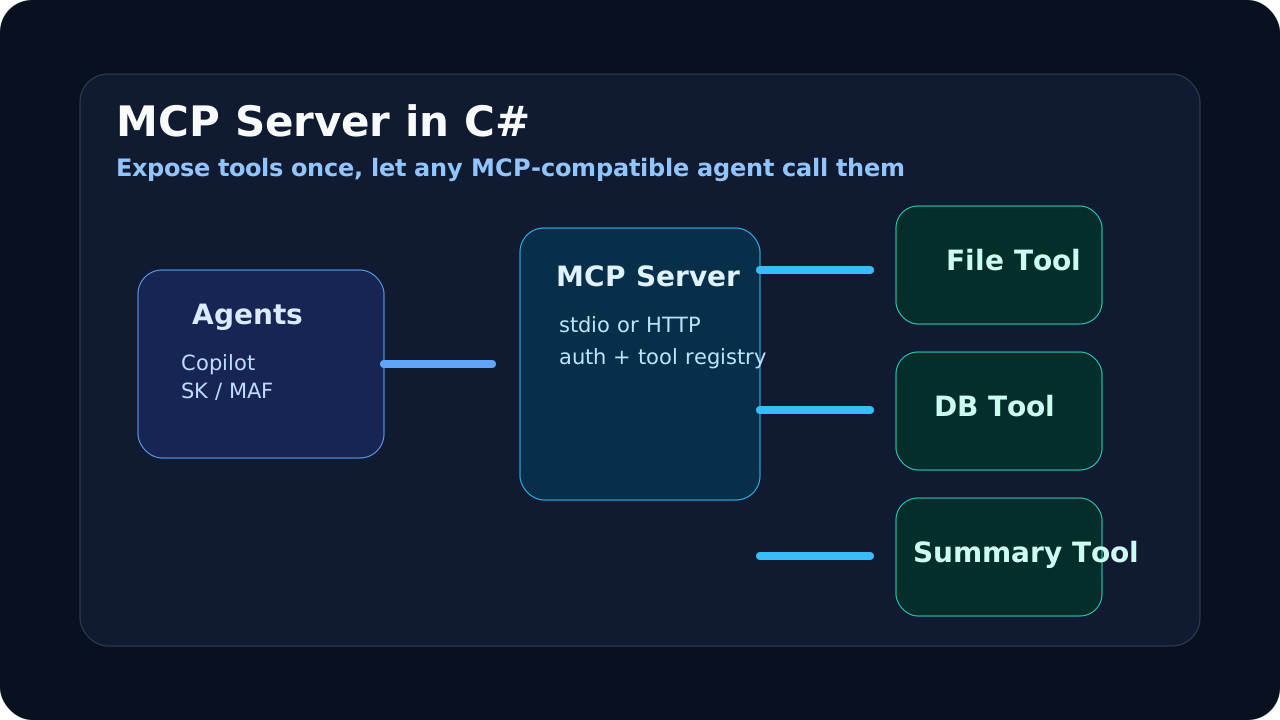
What You’ll Build
A fully functional MCP server that exposes three tools:
- File reader — Read files from a specified directory
- Database query — Execute read-only SQL queries against a SQLite database
- Text summarizer — Summarize text using a configurable prompt
You’ll host it two ways: stdio (for local use) and HTTP (for production), then connect it to a Semantic Kernel agent.
Prerequisites
- .NET 10 SDK
- An Azure OpenAI resource (for the agent that consumes the server)
Step 1: Create the Project
dotnet new web -n McpToolServer
cd McpToolServer
dotnet add package ModelContextProtocol
dotnet add package ModelContextProtocol.AspNetCore
dotnet add package Microsoft.Data.Sqlite
Step 2: Build the Tools
Create a Tools folder and add your tool classes.
Tools/FileTools.cs
using System.ComponentModel;
using ModelContextProtocol.Server;

namespace McpToolServer.Tools;

[McpServerToolType]
public static class FileTools
{
    private static readonly string BasePath = Path.Combine(
        AppContext.BaseDirectory, "workspace");

    [McpServerTool("read_file")]
    [Description("Read the contents of a file from the workspace directory. Returns file text content.")]
    public static string ReadFile(
        [Description("Relative file path within the workspace, e.g. 'docs/readme.md'")] string path)
    {
        var fullPath = Path.GetFullPath(Path.Combine(BasePath, path));

        // Prevent path traversal — enforce that resolved path stays within workspace
        if (!fullPath.StartsWith(BasePath, StringComparison.OrdinalIgnoreCase))
            return "Error: Access denied. Path is outside the workspace directory.";

        if (!File.Exists(fullPath))
            return $"Error: File not found: {path}";

        var content = File.ReadAllText(fullPath);
        return content.Length > 10_000
            ? content[..10_000] + "\n... [truncated at 10,000 characters]"
            : content;
    }

    [McpServerTool("list_files")]
    [Description("List all files in a workspace directory. Returns file names and sizes.")]
    public static string ListFiles(
        [Description("Relative directory path, e.g. 'docs' or '' for root")] string directory = "")
    {
        var fullPath = Path.GetFullPath(Path.Combine(BasePath, directory));

        if (!fullPath.StartsWith(BasePath, StringComparison.OrdinalIgnoreCase))
            return "Error: Access denied. Path is outside the workspace directory.";

        if (!Directory.Exists(fullPath))
            return $"Error: Directory not found: {directory}";

        var files = Directory.GetFiles(fullPath, "*", SearchOption.TopDirectoryOnly);
        var dirs = Directory.GetDirectories(fullPath, "*", SearchOption.TopDirectoryOnly);

        var entries = dirs
            .Select(d => $"  [DIR]  {Path.GetFileName(d)}/")
            .Concat(files.Select(f =>
            {
                var info = new FileInfo(f);
                return $"  [FILE] {info.Name} ({info.Length:N0} bytes)";
            }));

        return string.Join("\n", entries);
    }
}
Tools/DatabaseTools.cs
using System.ComponentModel;
using System.Text;
using Microsoft.Data.Sqlite;
using ModelContextProtocol.Server;

namespace McpToolServer.Tools;

[McpServerToolType]
public static class DatabaseTools
{
    private static readonly string DbPath = Path.Combine(
        AppContext.BaseDirectory, "data", "app.db");

    [McpServerTool("query_database")]
    [Description("Execute a read-only SQL query against the application database. Returns results as a formatted table. Only SELECT queries are allowed.")]
    public static string QueryDatabase(
        [Description("SQL SELECT query to execute")] string query)
    {
        // Enforce read-only — only allow SELECT statements
        var trimmed = query.TrimStart();
        if (!trimmed.StartsWith("SELECT", StringComparison.OrdinalIgnoreCase))
            return "Error: Only SELECT queries are allowed. This is a read-only tool.";

        try
        {
            using var connection = new SqliteConnection($"Data Source={DbPath};Mode=ReadOnly");
            connection.Open();

            using var command = connection.CreateCommand();
            command.CommandText = query;

            using var reader = command.ExecuteReader();
            var sb = new StringBuilder();

            // Column headers
            for (var i = 0; i < reader.FieldCount; i++)
            {
                if (i > 0) sb.Append(" | ");
                sb.Append(reader.GetName(i));
            }
            sb.AppendLine();
            sb.AppendLine(new string('-', sb.Length));

            // Rows (limit to 50)
            var rowCount = 0;
            while (reader.Read() && rowCount < 50)
            {
                for (var i = 0; i < reader.FieldCount; i++)
                {
                    if (i > 0) sb.Append(" | ");
                    sb.Append(reader.GetValue(i));
                }
                sb.AppendLine();
                rowCount++;
            }

            if (rowCount == 0) return "Query returned no results.";
            if (rowCount >= 50) sb.AppendLine("... [results truncated at 50 rows]");

            return sb.ToString();
        }
        catch (SqliteException ex)
        {
            return $"Query error: {ex.Message}";
        }
    }

    [McpServerTool("list_tables")]
    [Description("List all tables in the database with their column definitions")]
    public static string ListTables()
    {
        try
        {
            using var connection = new SqliteConnection($"Data Source={DbPath};Mode=ReadOnly");
            connection.Open();

            using var command = connection.CreateCommand();
            command.CommandText = """
                SELECT name, sql FROM sqlite_master
                WHERE type='table' AND name NOT LIKE 'sqlite_%'
                ORDER BY name
                """;

            using var reader = command.ExecuteReader();
            var sb = new StringBuilder();

            while (reader.Read())
            {
                sb.AppendLine($"Table: {reader.GetString(0)}");
                sb.AppendLine($"  Schema: {reader.GetString(1)}");
                sb.AppendLine();
            }

            return sb.Length > 0 ? sb.ToString() : "No tables found in database.";
        }
        catch (SqliteException ex)
        {
            return $"Error listing tables: {ex.Message}";
        }
    }
}
Tools/TextTools.cs
using System.ComponentModel;
using ModelContextProtocol.Server;

namespace McpToolServer.Tools;

[McpServerToolType]
public static class TextTools
{
    [McpServerTool("summarize_text")]
    [Description("Provide a condensed version of a long text. Extracts the first 500 characters and key statistics. For AI-powered summarization, the agent should use this data and generate its own summary.")]
    public static string SummarizeText(
        [Description("The text to summarize")] string text)
    {
        var wordCount = text.Split(' ', StringSplitOptions.RemoveEmptyEntries).Length;
        var lineCount = text.Split('\n').Length;
        var preview = text.Length > 500 ? text[..500] + "..." : text;

        return $"""
            Text Statistics:
            - Words: {wordCount}
            - Lines: {lineCount}
            - Characters: {text.Length}

            Preview:
            {preview}
            """;
    }

    [McpServerTool("word_count")]
    [Description("Count words, lines, and characters in a text")]
    public static string WordCount(
        [Description("The text to analyze")] string text)
    {
        var words = text.Split(' ', StringSplitOptions.RemoveEmptyEntries).Length;
        var lines = text.Split('\n').Length;
        return $"Words: {words}, Lines: {lines}, Characters: {text.Length}";
    }
}
Step 3: Host with HTTP (Production)
Update Program.cs for HTTP hosting:
using McpToolServer.Tools;

var builder = WebApplication.CreateBuilder(args);

builder.Services.AddMcpServer()
    .WithTools();

var app = builder.Build();

app.MapMcp("/mcp");

// Health check endpoint
app.MapGet("/health", () => Results.Ok(new { status = "healthy", tools = 6 }));

app.Run();
Create the workspace and data directories for the file and database tools:
mkdir workspace
mkdir data
echo "Hello from the MCP server workspace!" > workspace/readme.txt
Create a sample SQLite database:
dotnet add package Microsoft.Data.SqliteAdd a SetupDatabase.cs to initialize sample data:
using Microsoft.Data.Sqlite;

public static class SetupDatabase
{
    public static void Initialize()
    {
        var dbPath = Path.Combine(AppContext.BaseDirectory, "data", "app.db");
        Directory.CreateDirectory(Path.GetDirectoryName(dbPath)!);

        using var connection = new SqliteConnection($"Data Source={dbPath}");
        connection.Open();

        using var command = connection.CreateCommand();
        command.CommandText = """
            CREATE TABLE IF NOT EXISTS products (
                id INTEGER PRIMARY KEY,
                name TEXT NOT NULL,
                category TEXT NOT NULL,
                price REAL NOT NULL,
                stock INTEGER NOT NULL
            );

            INSERT OR IGNORE INTO products VALUES (1, 'Wireless Keyboard', 'Electronics', 49.99, 142);
            INSERT OR IGNORE INTO products VALUES (2, 'USB-C Hub', 'Electronics', 34.99, 89);
            INSERT OR IGNORE INTO products VALUES (3, 'Ergonomic Mouse', 'Electronics', 29.99, 234);
            INSERT OR IGNORE INTO products VALUES (4, 'Standing Desk Mat', 'Office', 39.99, 67);
            INSERT OR IGNORE INTO products VALUES (5, 'Monitor Light Bar', 'Electronics', 59.99, 156);
            """;
        command.ExecuteNonQuery();
    }
}
Call it from Program.cs before building the app:
SetupDatabase.Initialize();Step 4: Test the Server
Run the server:
dotnet runThe MCP endpoint is available at http://localhost:5000/mcp.
Step 5: Connect to a Semantic Kernel Agent
Create a separate console project for the client:
cd ..
dotnet new console -n McpAgentClient
cd McpAgentClient
dotnet add package Microsoft.SemanticKernel
dotnet add package ModelContextProtocol
using Microsoft.SemanticKernel;
using Microsoft.SemanticKernel.ChatCompletion;
using Microsoft.SemanticKernel.Connectors.AzureOpenAI;
using ModelContextProtocol.Client;
using ModelContextProtocol.Configuration;
// Connect to the MCP server
var mcpClient = await McpClientFactory.CreateAsync(
new McpServerConfig
{
Id = "tool-server",
Name = "Tool Server",
TransportType = TransportType.Sse,
TransportOptions = new Dictionary<string, string>
{
["url"] = "http://localhost:5000/mcp"
}
});
// Discover tools
var tools = await mcpClient.ListToolsAsync();
Console.WriteLine($"Connected. {tools.Count} tools available:");
foreach (var tool in tools)
Console.WriteLine($" - {tool.Name}: {tool.Description}");
// Build SK kernel with MCP tools
var kernel = Kernel.CreateBuilder()
.AddAzureOpenAIChatCompletion("chat-deployment",
Environment.GetEnvironmentVariable("AZURE_OPENAI_ENDPOINT")!,
Environment.GetEnvironmentVariable("AZURE_OPENAI_KEY")!)
.Build();
kernel.Plugins.AddFromFunctions("mcp_tools",
tools.Select(t => t.AsKernelFunction()));
var chatService = kernel.GetRequiredService<IChatCompletionService>();
var history = new ChatHistory("""
You are a data analyst assistant with access to files, a database, and text tools.
Use your tools to answer questions about the data available to you.
Always start by listing available files or tables to understand what data exists.
""");
var settings = new AzureOpenAIPromptExecutionSettings
{
FunctionChoiceBehavior = FunctionChoiceBehavior.Auto()
};
Console.WriteLine("\nData Analyst Agent (type 'exit' to quit)\n");
while (true)
{
Console.Write("You: ");
var input = Console.ReadLine();
if (string.IsNullOrWhiteSpace(input) || input.Equals("exit", StringComparison.OrdinalIgnoreCase))
break;
history.AddUserMessage(input);
var response = await chatService.GetChatMessageContentAsync(history, settings, kernel);
history.Add(response);
Console.WriteLine($"\nAssistant: {response.Content}\n");
}Try asking:
You: What tables are in the database? Show me all electronics products under $50.The agent will call list_tables, then query_database with the appropriate SQL, and format the results for you.
Step 6: Stdio Transport (Local/CLI)
For tools that run as local processes (CLI tools, IDE extensions), use stdio transport instead. Create a separate console app:
var builder = Host.CreateApplicationBuilder(args);

builder.Services.AddMcpServer()
    .WithStdioTransport()
    .WithTools();

var host = builder.Build();
await host.RunAsync();
Connect from a client:
var mcpClient = await McpClientFactory.CreateAsync(
    new McpServerConfig
    {
        Id = "local-tools",
        Name = "Local Tools",
        TransportType = TransportType.StdIO,
        TransportOptions = new Dictionary<string, string>
        {
            ["command"] = "dotnet",
            ["arguments"] = "run --project ../McpToolServer"
        }
    });
Production Considerations
Deployment
Deploy MCP servers as standard ASP.NET Core applications. They work in:
- Azure Container Apps — Auto-scaling, managed hosting
- Azure App Service — Simple deployment for low-scale
- Kubernetes — When you need fine-grained control
Security
- Always validate and sanitize tool inputs
- Use read-only database connections where possible
- Implement path traversal protection for file tools (shown above)
- Add authentication via MCP’s authorization server discovery
Next Steps
- Model Context Protocol Guide — Understand MCP architecture and concepts
- MCP C# SDK v1.0 Released — Release details and v1.0 features
- Microsoft Agent Framework Guide — Agent Framework’s MCP integration